Macro Security Settings Explained: Why Default Blocks Fail
Default macro security often fails because modern documents use hidden events that bypass standard warnings, leaving your system open to silent execution.

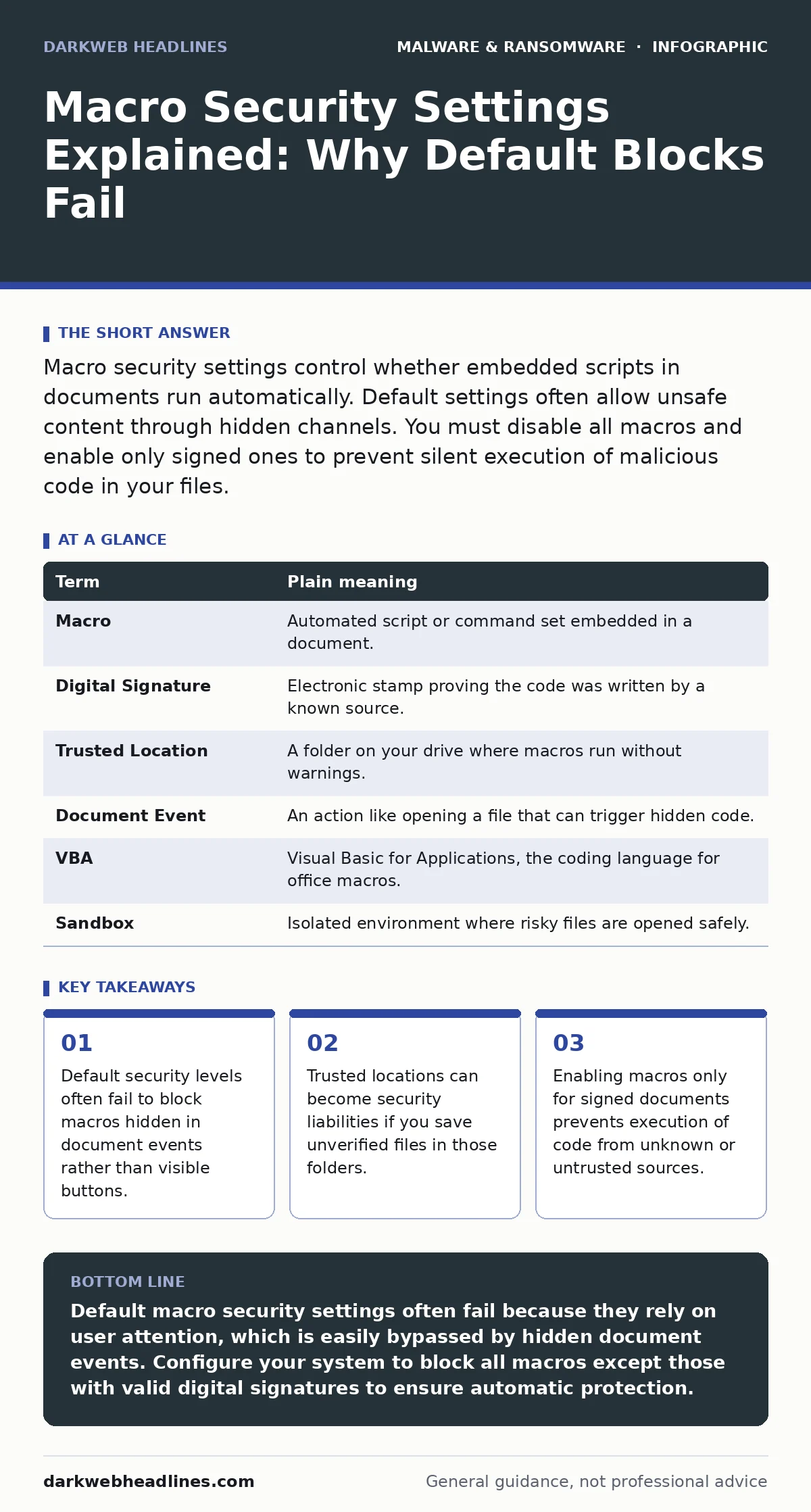
Macro security settings control whether embedded scripts in documents run automatically. Default settings often allow unsafe content through hidden channels. You must disable all macros and enable only signed ones to prevent silent execution of malicious code in your files.
The Courier and the Envelope
Imagine a courier service that delivers sealed envelopes to your office. The company policy states that you must inspect every envelope before opening it. Most couriers follow this rule. They hand you the package, you check the sender, and you decide whether to open it. This inspection process is the first line of defense. It ensures you know what you are accepting into your secure environment.
In computing, document macros function like instructions hidden inside those envelopes. A macro is a set of automated commands embedded within a file, such as a spreadsheet or a word document. These commands can perform tasks like formatting text or calculating data. However, they can also execute code that interacts with your operating system. When you open a file, you are effectively accepting the envelope. The security settings determine whether you inspect the contents or let the courier open it for you.
The Illusion of Safety
Many users believe that clicking "Disable Macros" when a warning appears is sufficient protection. This assumption is dangerous because modern documents often trigger macros without displaying a standard warning. Instead of a button you click, the code hides in document events, such as when the file opens or when a specific cell changes. These events run in the background, bypassing the visual inspection step.
This mechanism is similar to a courier who slips a letter through your mail slot without knocking. You never get the chance to inspect the envelope because the delivery happens automatically. If your security settings allow these background events to run, the malicious code executes before you realize the file is open. This is why default security levels often fail to stop sophisticated threats.
| Term | Plain meaning |
|---|---|
| Macro | Automated script or command set embedded in a document. |
| Digital Signature | Electronic stamp proving the code was written by a known source. |
| Trusted Location | A folder on your drive where macros run without warnings. |
| Document Event | An action like opening a file that can trigger hidden code. |
| VBA | Visual Basic for Applications, the coding language for office macros. |
| Sandbox | Isolated environment where risky files are opened safely. |
The Hidden Cost of Convenience
Convenience often undermines security. When you frequently open files from internal teams, the constant macro warnings become annoying. You may start clicking "Enable Content" out of habit, creating a muscle memory of unsafe behavior. This habit persists even when you open files from unknown sources. The brain stops distinguishing between trusted internal documents and external threats.
This behavioral shift is a hidden cost of poor security design. It teaches you to ignore warnings. Over time, you become desensitized to risk. The next time a malicious document appears, you will likely enable the macros without thinking. This is why relying on user vigilance is a flawed strategy. The system must enforce safety, not just suggest it.
The Trusted Location Trap
A trusted location is a folder designated by your system to bypass macro security checks. Files saved in these folders run automatically without warnings. Organizations often use this feature for internal templates or frequently used forms. However, this creates a significant vulnerability if an attacker can place a file in that folder.
Suppose an attacker gains access to your network share. They do not need to trick you into clicking a button. They simply place a malicious document in a folder your system trusts. When you open that file, the macros run silently. This bypasses your primary defense mechanism. It turns a security feature into a backdoor. You must restrict write access to trusted locations and monitor them for unauthorized changes.
The Signature Solution
Digital signatures provide a way to verify the source of a macro. A signature is a cryptographic stamp that proves the code has not been altered since it was signed. If a document is signed by a trusted publisher, you can safely enable its macros. If it is unsigned, the system should block execution entirely.
This approach shifts the burden from user vigilance to technical verification. You no longer need to decide if a file is safe based on the sender's name. The system checks the signature automatically. If the signature is missing or invalid, the macros remain disabled. This method prevents execution of code from unknown or untrusted sources. It is the most reliable way to balance functionality and security.
Practical Steps for Immediate Protection
- Disable All Macros Except Signed Ones: Change your security settings to block all macros by default. Enable them only if the document has a valid digital signature from a trusted publisher.
- Audit Trusted Locations: Review the folders listed as trusted locations. Remove any folders that store files from unknown sources or that are accessible to multiple users.
- Use a Sandbox for Untrusted Files: Open documents from unknown sources in a sandbox environment. This isolated system prevents any embedded code from affecting your main computer.
Connecting to Broader Threats
Understanding macro security is part of a larger defense strategy. Malicious code in documents often serves as an initial entry point for more sophisticated threats. For example, a macro might download a trojan that establishes persistent access to your system. This initial infection can then lead to the deployment of ransomware-as-a-service, which encrypts your files for extortion.
These threats often rely on malvertising to distribute malicious documents through compromised websites. Users click on an ad, download a file, and unknowingly enable macros. This chain of events highlights the importance of device hardening, which involves configuring systems to resist these initial attacks. By securing macro settings, you disrupt the chain before it leads to severe consequences like computer viruses or banking trojans.
Key takeaways
- Default security levels often fail to block macros hidden in document events rather than visible buttons.
- Trusted locations can become security liabilities if you save unverified files in those folders.
- Enabling macros only for signed documents prevents execution of code from unknown or untrusted sources.
Default macro security settings often fail because they rely on user attention, which is easily bypassed by hidden document events. Configure your system to block all macros except those with valid digital signatures to ensure automatic protection.
Frequently asked questions
Why do I still see macro warnings if my security is set to high?
Some documents use legacy formats or specific features that trigger different warning dialogs, requiring you to check settings for both VBA and other script types.
Can a PDF file contain macros?
Standard PDFs do not support macros, but they can contain JavaScript that behaves similarly, so you must also disable JavaScript execution in your PDF reader.
Does enabling macros for signed documents guarantee safety?
No, if the publisher's certificate is compromised or if the publisher is trusted but the specific document is malicious, signed macros can still cause harm.
How do I know if a document has a digital signature?
Look for a signature line or a protection indicator in the document properties, which displays the name of the signer and the validity status.
How this guide was produced: written by the DarkWeb Headlines editorial team with AI assistance, checked against the public references listed below, and reviewed when the facts change. See our editorial policy or report an error.