Isolating Infected Devices: 7 Mistakes That Spread Malware
Disconnecting a device without preserving memory state often destroys the forensic evidence needed to understand how the malware entered your network in the first place.

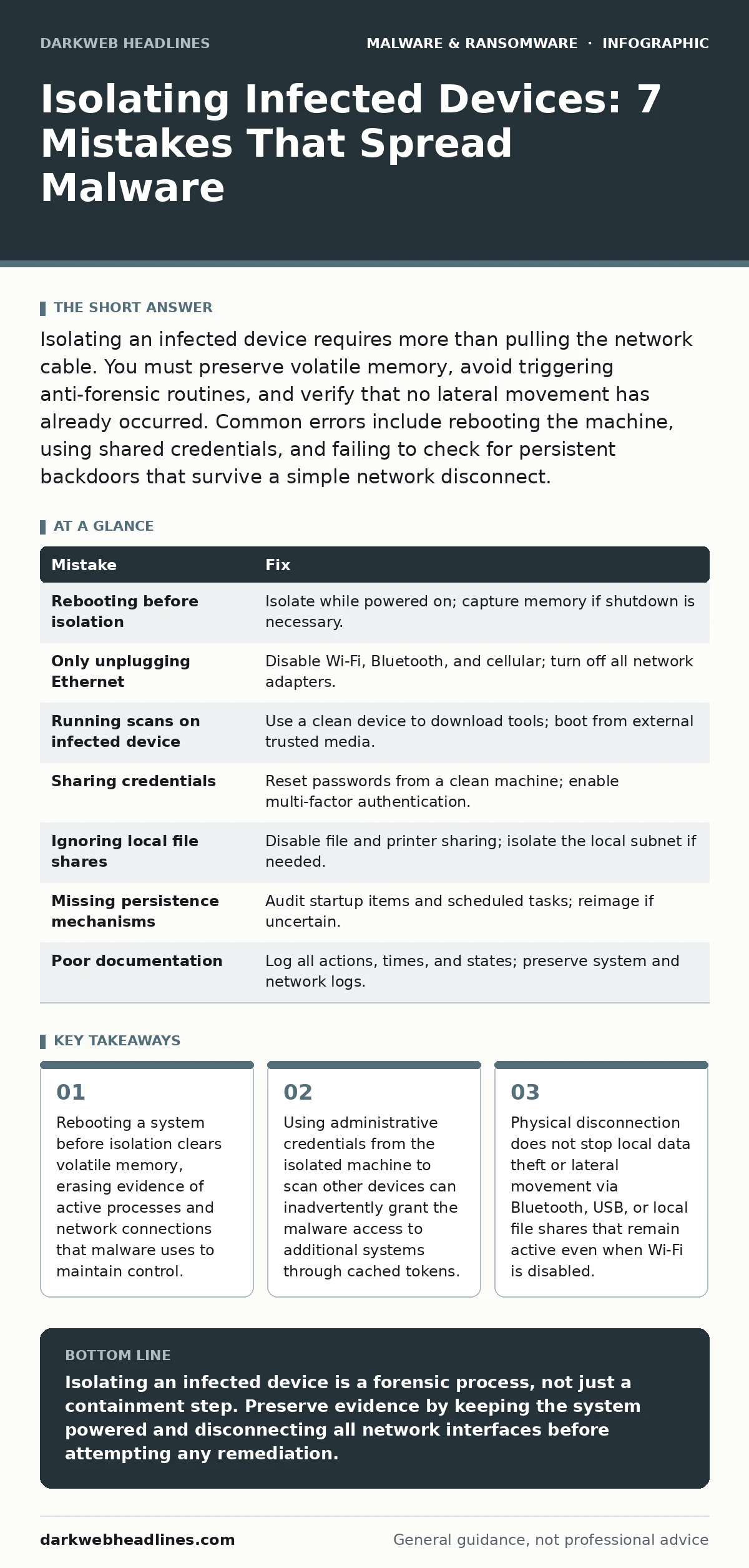
Isolating an infected device requires more than pulling the network cable. You must preserve volatile memory, avoid triggering anti-forensic routines, and verify that no lateral movement has already occurred. Common errors include rebooting the machine, using shared credentials, and failing to check for persistent backdoors that survive a simple network disconnect.
Mistake 1: Rebooting the Device Before Isolation
Rebooting an infected device is the most common error because it seems like a fresh start. This action clears the random access memory, which holds the current state of running processes. Malware often resides only in memory during its active phase. When you reboot, the process terminates, and the evidence of its network connections, injected code, and active command channels vanishes. You lose the ability to see what the malware was doing at that exact moment.
Why it hurts:
Volatile data disappears instantly upon power loss. Security teams rely on this memory dump to identify the command-and-control servers and the specific tools the attacker used. Without this data, you cannot determine the full scope of the compromise. The malware may have established a persistence mechanism that only activates on boot, meaning you might not see it again until it re-executes, giving the attacker more time to operate undetected.
The fix:
Isolate the device while it remains powered on. If you must shut it down for physical safety, do so only after capturing a memory dump using a trusted forensic tool. For most users, simply disconnecting the network cable or disabling Wi-Fi is sufficient to stop communication while keeping the system state intact for analysis.
Mistake 2: Pulling the Network Cable Only
Many people assume that unplugging the Ethernet cable stops all communication. This ignores other network interfaces that may remain active. Bluetooth, Wi-Fi, and cellular connections can still transmit data. Malware authors know this and often design their tools to switch to secondary channels if the primary one fails. If the device has a cellular modem or is connected to a mobile hotspot, the malware continues to exfiltrate data or receive commands.
Why it hurts:
Data exfiltration continues silently. The attacker maintains their foothold and can issue new commands. You believe the device is isolated, but it is still talking to the outside world. This false sense of security delays the response and allows the breach to deepen. The malware may also use local network protocols to scan for other devices, preparing for lateral movement once the primary connection is restored.
The fix:
Disable all wireless interfaces via the operating system settings before disconnecting the physical cable. Turn off Wi-Fi, Bluetooth, and cellular data. For laptops, closing the lid can sometimes trigger sleep modes that interfere with forensic analysis, so keep the device awake but visually isolated if possible. Verify that no network adapters are active by checking the system tray or network settings.
Mistake 3: Using the Infected Machine to Run Scans
It is tempting to use the infected device to download or run antivirus software because it is already in front of you. This is dangerous because the malware may have compromised the operating system kernel or the security software itself. Running scans from within the infected environment gives the malware visibility into your defensive actions. It can hide its files, terminate the scanner, or spoof the results to make the system appear clean.
Why it hurts:
You receive false negatives. The malware manipulates the scan results to hide its presence. Additionally, downloading new software from an infected machine risks corrupting the installer or embedding the malware into the new tool. The attacker gains intelligence on your defensive tools, allowing them to adapt their tactics for future attacks. This undermines the integrity of your entire security posture.
The fix:
Use a clean, isolated device to download security tools. Transfer the tools via a clean USB drive that has been formatted on a known-safe system. Boot the infected machine from a trusted external drive if possible, or use a live operating system environment that runs entirely in memory and does not interact with the infected hard drive. This ensures the scanner operates in a clean environment.
Mistake 4: Sharing Credentials Across Devices
Administrators often use the same username and password for multiple devices. When one device is infected, the malware can harvest these credentials from the memory or keyloggers. If you use these same credentials to access other systems, the malware effectively gains access to those systems too. This is known as lateral movement. The infection spreads not through network exploits, but through valid login tokens that you provide.
Why it hurts:
The breach expands rapidly. The attacker moves from the initial infected device to servers, databases, and other workstations. You are essentially handing the attacker the keys to the rest of your infrastructure. This turns a contained incident into a widespread crisis. The damage multiplies as the attacker accesses sensitive data and installs additional payloads on other systems.
The fix:
Immediately reset the passwords for any accounts used on the infected device. Do this from a clean, uncompromised machine. Implement multi-factor authentication to ensure that stolen passwords alone are insufficient for access. Review logs on other systems for suspicious login attempts using the compromised credentials. Assume that any account used on the infected device is breached.
Mistake 5: Ignoring Local File Shares
Isolating network connections does not disable local file sharing protocols. If the infected device has shared folders enabled, other devices on the same local network can still access those files. Malware can use these shares to copy itself to other machines or to steal data directly from the local network. This bypasses perimeter defenses and firewalls that only monitor external traffic.
Why it hurts:
Lateral movement occurs without leaving the local network. The malware spreads to other devices that trust the infected machine. You may not detect this movement because it does not involve external internet traffic. The infection becomes deeply embedded in your local infrastructure. Cleaning the initial device does not stop the spread if the malware has already copied itself to shared folders on other systems.
The fix:
Disable all file and printer sharing on the isolated device. Check the network settings to ensure that network discovery is turned off. If you suspect local spread, isolate all devices on the same subnet. Scan other devices on the local network for recent changes in file timestamps or unexpected new files in shared directories. Treat the local network as compromised until proven otherwise.
See also: Initial Access Broker Response: Containment and Recovery Steps · How SOC Playbooks Work: Mechanism, Limits, and Execution
Mistake 6: Failing to Check for Persistence Mechanisms
Malware often installs itself to run every time the computer starts. These persistence mechanisms include registry entries, scheduled tasks, or startup folders. Simply disconnecting the network does not remove these mechanisms. If you restore the device to the network without removing the persistence, the malware will reactivate immediately. It will re-establish its connection to the command-and-control server and resume its malicious activities.
Why it hurts:
The infection returns as soon as the device reconnects. You waste time and resources isolating and cleaning the device only to have it reinfect itself. This cycle repeats until the persistence mechanism is fully removed. The attacker maintains long-term access to your network. This persistence can be subtle and difficult to detect without a thorough audit of the system's startup processes.
The fix:
Perform a thorough audit of startup items, scheduled tasks, and service entries. Compare these lists against a known-good baseline if available. Use specialized tools designed to detect hidden persistence mechanisms. Consider reimaging the device from a clean source if you cannot verify that all persistence has been removed. This is the most reliable way to ensure the malware does not return.
Mistake 7: Not Documenting the Isolation Process
Isolating a device is a critical step in incident response, but it is often done hastily without documentation. Failing to record the time of isolation, the methods used, and the state of the device makes it difficult to analyze the incident later. This lack of documentation hinders forensic analysis and legal proceedings. It also prevents you from learning from the incident to prevent future occurrences.
Why it hurts:
You lose the context of the incident. Without clear records, it is difficult to determine the scope of the breach or the effectiveness of your response. This can lead to repeated infections and a failure to improve your security posture. In legal or insurance contexts, poor documentation can undermine your credibility and liability defense. The knowledge gained from the incident is lost.
The fix:
Create a detailed log of every action taken during the isolation process. Record the time, date, and person responsible for each step. Note the state of the device, including any visible symptoms and network connections. Preserve logs from the device and network equipment. This documentation is vital for post-incident analysis and for improving your security procedures.
| Mistake | Fix |
|---|---|
| Rebooting before isolation | Isolate while powered on; capture memory if shutdown is necessary. |
| Only unplugging Ethernet | Disable Wi-Fi, Bluetooth, and cellular; turn off all network adapters. |
| Running scans on infected device | Use a clean device to download tools; boot from external trusted media. |
| Sharing credentials | Reset passwords from a clean machine; enable multi-factor authentication. |
| Ignoring local file shares | Disable file and printer sharing; isolate the local subnet if needed. |
| Missing persistence mechanisms | Audit startup items and scheduled tasks; reimage if uncertain. |
| Poor documentation | Log all actions, times, and states; preserve system and network logs. |
Key takeaways
- Rebooting a system before isolation clears volatile memory, erasing evidence of active processes and network connections that malware uses to maintain control.
- Using administrative credentials from the isolated machine to scan other devices can inadvertently grant the malware access to additional systems through cached tokens.
- Physical disconnection does not stop local data theft or lateral movement via Bluetooth, USB, or local file shares that remain active even when Wi-Fi is disabled.
Isolating an infected device is a forensic process, not just a containment step. Preserve evidence by keeping the system powered and disconnecting all network interfaces before attempting any remediation.
Frequently asked questions
How do I know if a device is infected?
Look for unusual network traffic, unexpected processes, or changes in file timestamps. Behavior-based detection tools can identify suspicious activity even if the malware is unknown.
Can I use the infected device for offline backups?
No. Connecting an offline backup drive to an infected device can spread the malware to the backup. Always verify the integrity of backups separately.
What if the malware is ransomware?
Ransomware-as-a-service kits often include tools to wipe backups and spread laterally. Isolate immediately to prevent encryption of other devices.
Does Android malware behave differently?
Android malware often relies on user permissions. Revoking permissions and disabling network access is critical. Check for unknown apps with high privileges.
How this guide was produced: written by the DarkWeb Headlines editorial team with AI assistance, checked against the public references listed below, and reviewed when the facts change. See our editorial policy or report an error.