Offline Backup Mistakes That Break Ransomware Recovery
Most offline backups fail because the storage medium remains connected to the network or because the recovery files were never tested for integrity.
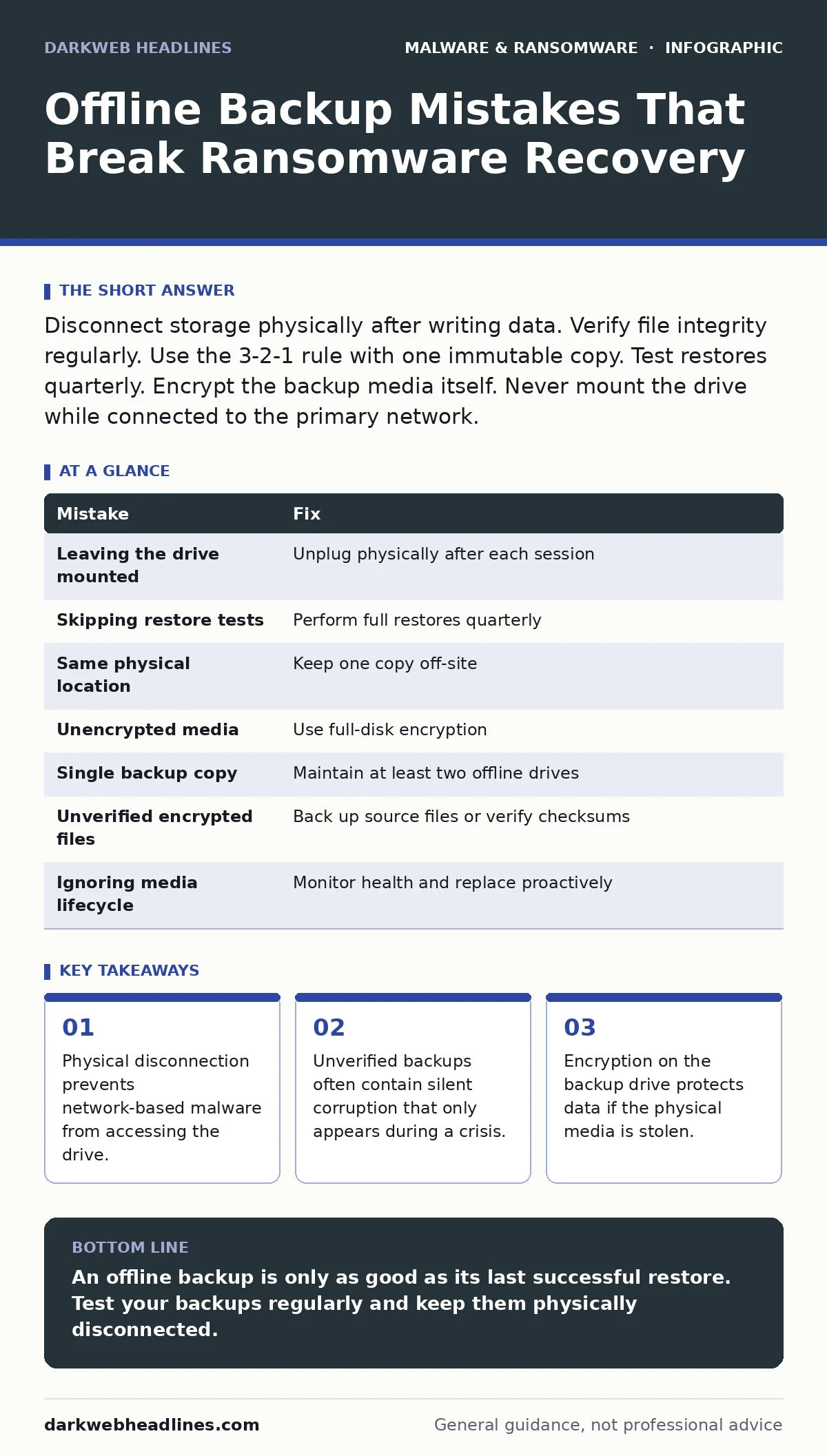
Disconnect storage physically after writing data. Verify file integrity regularly. Use the 3-2-1 rule with one immutable copy. Test restores quarterly. Encrypt the backup media itself. Never mount the drive while connected to the primary network.
Mistake 1: Leaving the Drive Mounted in the OS
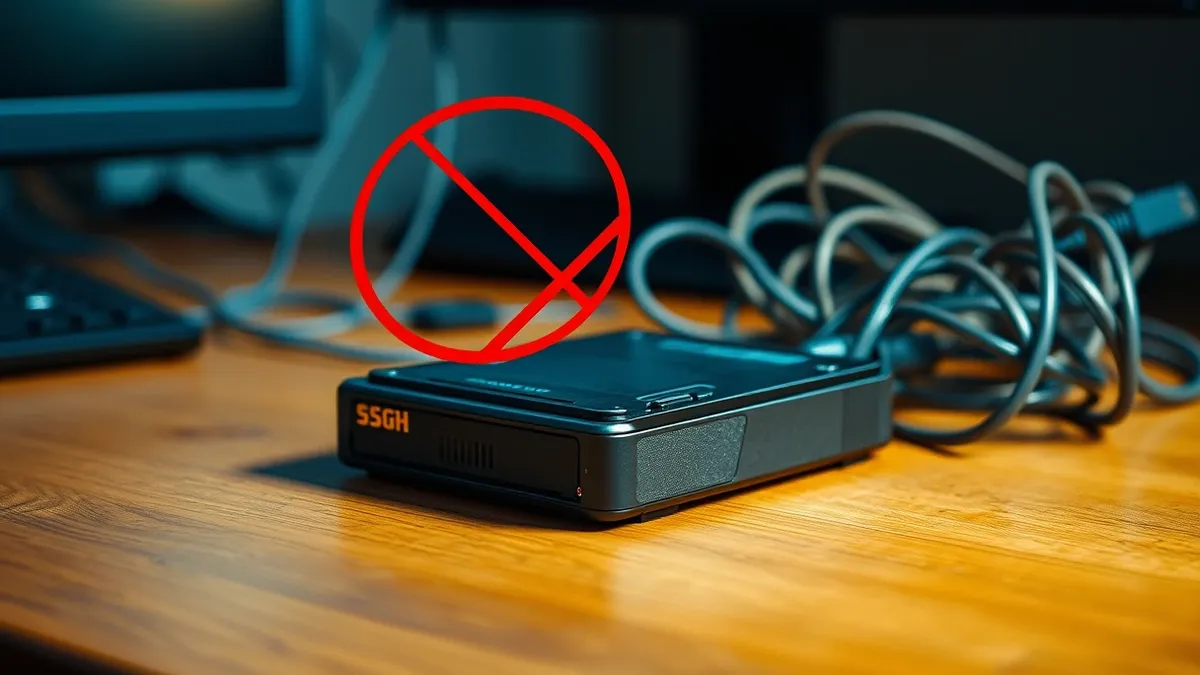
Imagine a hard drive that sits on your desk, connected via USB, but is not actively being written to. You assume it is safe because you do not use it daily. This assumption is false. Modern operating systems keep mounted drives visible to the file system. Malware that gains administrative privileges can see every attached volume. It does not need to know which drive is the backup. It simply encrypts every writable partition it can reach.
Why it hurts:
A mounted drive is a writable drive to an attacker with local access. Ransomware scans the system for all available storage devices. If the backup drive is mounted, it appears as just another folder on the C: drive or in the network neighborhood. The malware encrypts the backup files alongside your active data. You lose both the original and the copy in a single event.
The fix:
Unplug the drive after every backup session. Do not rely on software switches or "offline" modes in the operating system. Physical disconnection is the only guarantee that the drive is invisible to the host system. If you use a network-attached storage device, place it on a separate VLAN that has no route to the primary network except during the backup window. Even then, a physical switch is superior.
Mistake 2: Skipping the Restore Test
You back up your files every night. The logs show success. You feel secure. Then your system is compromised. You insert the backup drive and find that the files are corrupted, incomplete, or encrypted by a virus that infected the backup months ago. This is the most common failure point. Writing data is not the same as preserving recoverable data.
Why it hurts:
Silent data corruption happens over time. Magnetic media degrades. Flash memory loses charge. File system errors can go unnoticed by the backup software. If you never test the restore process, you do not know your backup is broken until you need it. By then, the window for recovery may have closed.
The fix:
Perform a full restore to an isolated environment at least once a quarter. Do not just open a file from the backup. Copy the entire directory structure to a clean machine. Verify that applications launch and documents open. This process reveals format incompatibilities and corruption that routine checks miss. Treat the restore test as a mandatory maintenance task, not an optional check.
Mistake 3: Storing Backups in the Same Physical Location
Suppose you keep your external hard drive in the same drawer as your laptop. You are safe from ransomware, but you are not safe from fire, flood, or theft. Physical threats do not care about your cyber hygiene. A single event can destroy your primary system and your backup simultaneously. This is a single point of failure.
Why it hurts:
Geographic proximity creates correlated risk. If a building burns down, both devices are lost. If a thief steals your laptop, they likely take the nearby backup drive. You have no off-site redundancy. The backup exists, but it is inaccessible and destroyed. Your data is gone.
The fix:
Keep one offline backup in a different physical location. Use a safety deposit box or a trusted family member’s home. Rotate two drives between locations. This ensures that a local disaster does not wipe out all copies. The second location should be secure but accessible to you when needed.
Mistake 4: Not Encrypting the Backup Media
You have disconnected the drive. You have tested the restore. But you leave the drive unencrypted. If the drive is stolen, the thief can plug it into any computer and access your data. They do not need to break into your network. They just need the physical media. This exposes your data to unauthorized viewing or further tampering.
Why it hurts:
Physical theft is a common vector for data loss. An unencrypted drive is an open book. The thief can copy sensitive files, sell them, or use them for identity theft. They can also modify the backup files to make them unusable for you. Encryption at rest protects the data even if the device is lost.
The fix:
Use full-disk encryption on the backup drive. BitLocker on Windows and FileVault on macOS are standard options. Ensure the encryption key is not stored on the primary machine. Keep the recovery key in a secure, offline location. This adds a layer of security that works independently of your computer’s security status.
Mistake 5: Relying on a Single Backup Copy
Imagine you have one external drive. You back up to it every night. One day, the drive fails. You notice only when you try to restore. You have no other copy. Your data is lost. This is the danger of having a single point of failure in your backup strategy. Hardware fails. Drives die. It is a matter of time, not if.
Why it hurts:
Hardware failure is inevitable. A single drive offers no redundancy. If that drive fails, you have zero copies. You cannot recover. The cost of replacing a drive is low, but the cost of lost data is often immeasurable. You need at least two offline copies to mitigate this risk.
The fix:
Maintain at least two offline drives. Rotate them. Use one for the current backup and keep the other in storage. This provides a buffer against drive failure. If the active drive dies, you still have the previous week’s backup on the secondary drive. This simple redundancy saves you from total loss.
Mistake 6: Backing Up Encrypted or Compressed Files Without Verification
You back up your files, including those already encrypted by applications or compressed in archives. You assume the backup software handles them correctly. It does not. If the source file is corrupted, the backup copies the corruption. If the encryption key is lost, the backup is useless. You are preserving the symptom, not the cure.
Why it hurts:
Encrypted files are opaque to backup software. The software cannot verify the integrity of the content inside the encryption. It only copies the bytes. If the original file is corrupted, the backup is also corrupted. You cannot detect the issue until you try to decrypt and open the file, which may be too late.
The fix:
Back up the unencrypted, uncompressed source files whenever possible. If you must back up encrypted archives, verify the integrity of the archive on the backup drive. Use checksums to ensure the backup matches the source. This ensures that the data is not just copied, but preserved in a usable state.
Mistake 7: Ignoring the Media’s Lifecycle
You use the same external drive for years. You assume it will last forever. It will not. Flash memory has a limited number of write cycles. Magnetic platters degrade. Eventually, the drive will fail. If you do not monitor the health of the drive, you will not know until it is too late.
Why it hurts:
Media failure is silent until it is catastrophic. Bad sectors grow. Read errors increase. The drive may still mount, but it may not hold data reliably. You trust it, but it is rotting. When you need it, it fails.
The fix:
Monitor the health of your backup drives. Use S.M.A.R.T. data to check for errors. Replace drives proactively, before they fail. Do not wait for a warning. Set a replacement schedule, such as every three to five years. This ensures that your backup media is always reliable.
| Mistake | Fix |
|---|---|
| Leaving the drive mounted | Unplug physically after each session |
| Skipping restore tests | Perform full restores quarterly |
| Same physical location | Keep one copy off-site |
| Unencrypted media | Use full-disk encryption |
| Single backup copy | Maintain at least two offline drives |
| Unverified encrypted files | Back up source files or verify checksums |
| Ignoring media lifecycle | Monitor health and replace proactively |
Key takeaways
- Physical disconnection prevents network-based malware from accessing the drive.
- Unverified backups often contain silent corruption that only appears during a crisis.
- Encryption on the backup drive protects data if the physical media is stolen.
An offline backup is only as good as its last successful restore. Test your backups regularly and keep them physically disconnected.
Frequently asked questions
Can I use cloud storage as an offline backup?
No. Cloud storage is online. It is accessible over the network and can be affected by ransomware or account compromise. It is not offline.
How often should I test my backups?
At least once a quarter. More often if your data changes frequently or is critical to your operations.
What if I lose the encryption key for my backup?
You cannot recover the data. Keep the recovery key in a secure, offline location separate from the backup drive.
Is a NAS device considered offline if I disconnect the network cable?
No. It is still connected to the local network via Wi-Fi or other interfaces unless completely powered off. Physical disconnection is required.
How this guide was produced: written by the DarkWeb Headlines editorial team with AI assistance, checked against the public references listed below, and reviewed when the facts change. See our editorial policy or report an error.